
Three ways to make a widget
A widget in CloudPeek is one graph, number, table or alarm list, refreshed with the sign-in of the account it was made for. You can make one three ways:
| Kind | What it is | Choose it for |
|---|---|---|
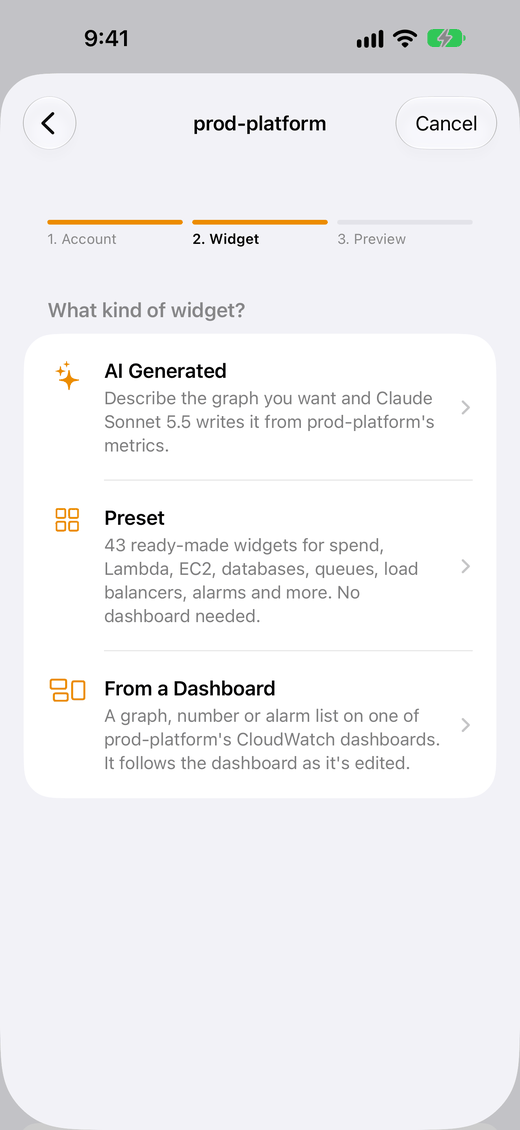
| AI Generated | A widget an AI model writes from your description and the account's metrics. CloudPeek checks it loads before you see it. | Anything a preset doesn't cover, without opening the AWS console. See AI widgets. |
| Preset | One of 43 ready-made widgets for common AWS metrics. No dashboard needed. | Spend, Lambda, EC2, ECS, DynamoDB, RDS, S3, SQS, SNS, Step Functions, load balancers, API Gateway, CloudFront, alarms and CloudWatch itself. See Presets. |
| From a Dashboard | Any graph, number or alarm list on one of the account's CloudWatch dashboards, drawn as it will look. It follows the dashboard as it's edited. | Metrics you've already chosen and grouped, alarm lists you choose, and anything you keep in CloudFormation or Terraform. See Design dashboards. |
All three are CloudWatch metric or alarm widgets underneath, written in the same JSON as a dashboard, so CloudPeek queries and draws them the same way (see the Widget reference).
Create a widget
- On the Widgets tab, tap Create Widget, or tap + on an account's screen. (The tab is greyed out until you've added an account.)
- 1. Account: choose the account whose metrics the widget shows. It always refreshes with that account's sign-in. An account whose sign-in has ended says Sign-in expired · sign in again to load its data. With only one account, or from an account's screen, it's chosen already and Create Widget starts at step 2; Back still leads to the accounts.
- 2. Widget: under What kind of widget?, choose AI Generated, Preset or From a Dashboard, then which one (below).
- 3. Preview: check it At each size. For a preset or AI widget you can change its Title, for many presets its Time range, and for most its Region. Then tap Add Widget.
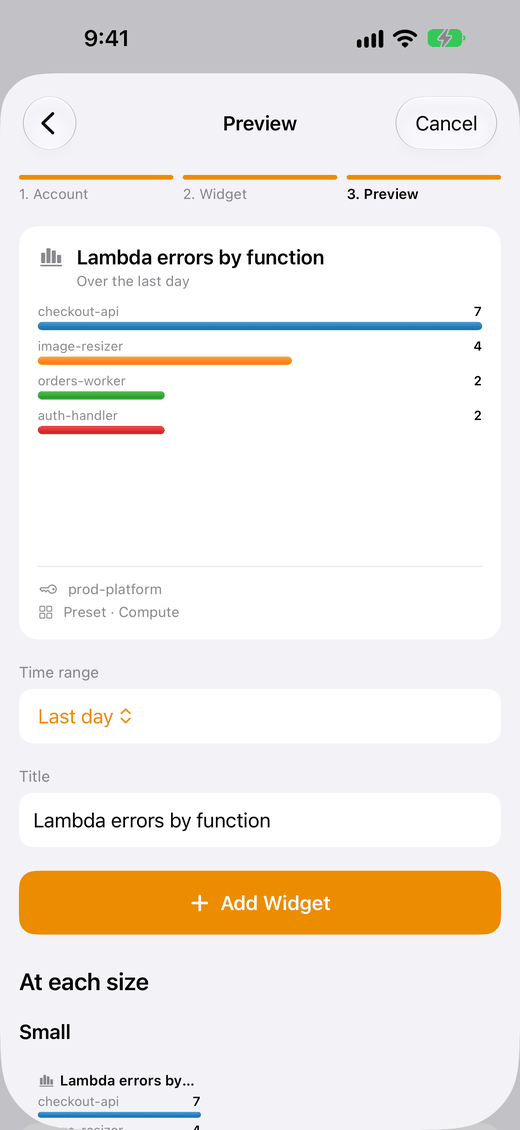
Result: the widget joins the Widgets tab, which opens scrolled to it, and CloudPeek says Added “…”. Next, add it to your Home Screen. Tap How? for the steps, or see Home Screen and Lock Screen. The first time, it shows those steps by itself.
Cancel, at the top of each step, closes Create Widget without adding anything.
From a dashboard
- Choose From a Dashboard, then one of the account's dashboards. Search dashboards finds one by name, and each says how many widgets it has and when it was last changed.
- Every widget on it is drawn as it will look in CloudPeek. Tap Choose on the one you want. A widget you've already added says Added.
Widgets CloudPeek can't show yet, such as Logs Insights, say so instead of offering Choose. If the account has no dashboards, CloudPeek says No Dashboards: make one in the CloudWatch console, or choose a preset or describe a widget instead.
A dashboard widget follows its dashboard: each refresh reads the dashboard again, so changes you make in the console or deploy from code show up on their own. Its title comes from the dashboard, so rename it there. How changes reach your phone.
From a preset
Choose Preset to see every preset by category, each with a line saying what it shows. Search presets matches names and descriptions. A green tick marks a preset you've already added.
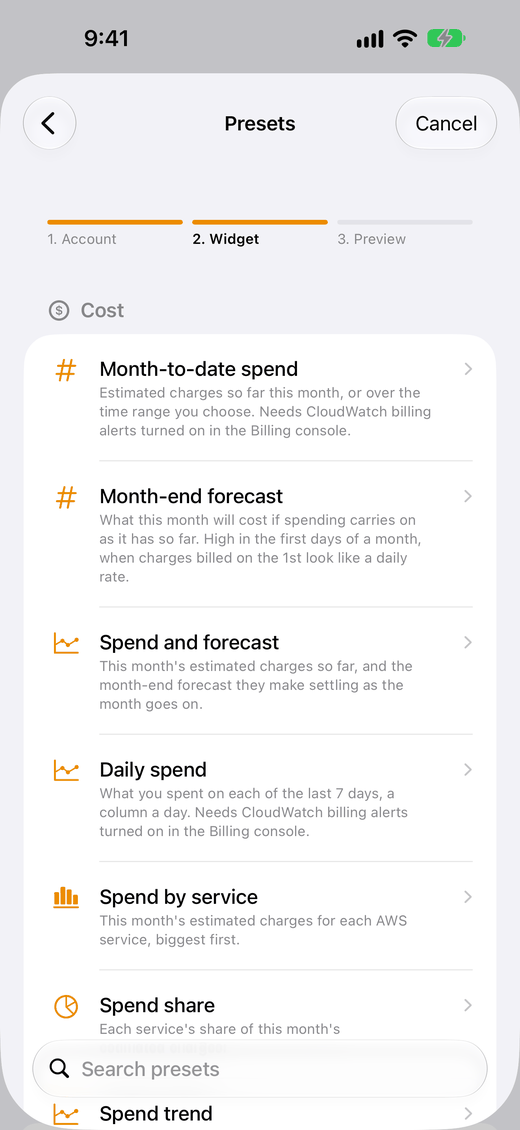
In the preview, many presets offer a Time range, from the last hour to the last 30 days, or the month to date for spend. The title then says which, such as “Lambda invocations, last 7 days”, and each time range is a widget of its own, so you can add the same preset over the last 3 hours and the last week. Which presets offer which ranges.
Presets look for metrics in the account's default region, unless you choose another under Region in the preview, and keep the region they were added in. Each region is a widget of its own, with its region named beneath it. A preview that finds nothing says which region it looked in. The spend presets and CloudFront requests always use US East (N. Virginia), so they have no Region to choose.
With AI
Choose AI Generated, describe the graph you want, and tap Generate. The model looks up the account's metrics, writes the widget, and CloudPeek checks it loads before showing you the preview. How AI widgets work, where the model runs, and what it costs.
Pin from a dashboard while you browse
You can also add dashboard widgets without Create Widget:
- On the Accounts tab, open an account, then one of its dashboards.
- Tap Pin on a widget. It changes to Pinned, and CloudPeek says Pinned “…”. Next, add it to your Home Screen.
Preview Sizes, beside Pin, shows it at every size first. To take a widget off, tap Pinned; if a Home Screen widget is showing it, CloudPeek asks first, and Undo brings it back.
Adding the same widget again
If you choose a dashboard widget, or a preset over the same time range, that's already on the Widgets tab, the preview's button says Update Widget, with the note “… is already on the Widgets tab. This updates it, and the Home Screen widgets showing it.” Nothing is added twice.
This is also how Home Screen widgets reconnect after you remove a widget and add it again:
- Dashboard widgets reconnect when you add the same widget from the same dashboard.
- Presets reconnect when you add the same preset, over the same time range, for the same account and region.
- AI widgets never reconnect: each one written is new. To keep one, tap Undo straight after removing it. To change one, use Edit Description instead (see AI widgets), which replaces it in place.