
Add CloudPeek to your Home Screen
First add a widget in CloudPeek (see Create a widget). Then:
- Touch and hold an empty area of your Home Screen until the apps jiggle.
- Tap Edit, then Add Widget.
- Find CloudPeek (its widget is called CloudWatch Dashboard), pick a size and tap Add Widget.
- A new Home Screen widget shows the widget you added last in CloudPeek. To show another, see below.
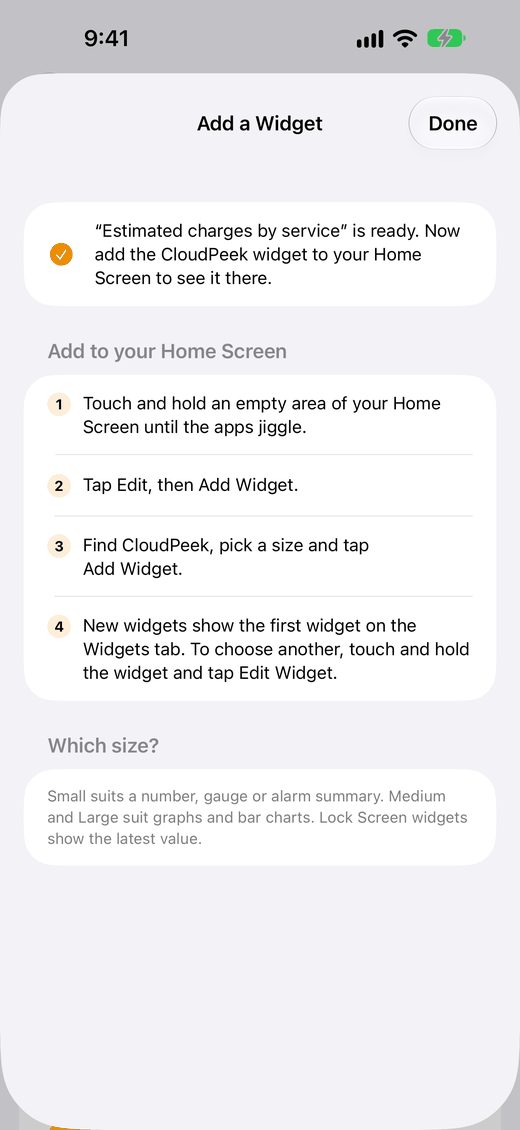
Which size? Small suits a number, gauge or alarm summary. Medium and large suit graphs and bar charts, and add a legend, a refresh button, and the time the data covers. On iPad, extra large shows the large layout with more room. The Widget reference has the details.
Choose which widget it shows
- Touch and hold the Home Screen widget, then tap Edit Widget.
- Tap Widget and choose one of the widgets on CloudPeek's Widgets tab.
Add CloudPeek as many times as you like, each showing a different widget, from any of your accounts. New Home Screen widgets start with the widget you added last, as that's usually the one you made to put there.
Lock Screen
- Touch and hold the Lock Screen, then tap Customize and choose Lock Screen.
- Tap the widget area under the time, or the date above it for a one-line widget.
- Find CloudPeek and tap a size to add it. Then tap the added widget to choose which CloudPeek widget it shows.
- Tap Done.
Lock Screen widgets show one headline value, so you can read it without unlocking:
- Rectangular: the title, the value, and the series or bar it came from, or a warning if it's out of date.
- Circular: the value and a few letters of the title. A gauge is drawn as an iOS gauge.
- Inline, above the time: the value and a short title.
Which value each kind of widget shows is in the Widget reference.
Tapping a widget
- A Home Screen widget opens the screen of the widget it shows, on CloudPeek's Widgets tab (see A widget's own screen). If that's a dashboard widget whose AWS account isn't in CloudPeek, it opens the Widgets tab and says so.
- A widget whose sign-in has expired opens the sign-in, filled in: see When a sign-in ends.
- Medium and larger widgets have a refresh button in the corner, which fetches new data now.
The Widgets tab
CloudPeek's Widgets tab shows every widget you've added, drawn as it looks on the Home Screen and refreshed with its own account. Pull down to refresh them all. The tab is greyed out until you've added an account, and once you have widgets, CloudPeek opens on it. Tap a widget to open its own screen.
Beneath each widget:
- the account it refreshes with;
- where it came from: Dashboard and the dashboard's name, Preset and its category, or AI generated;
- On Home Screen when a Home Screen or Lock Screen widget has shown it in the last few days;
- for a widget whose AWS account isn't in CloudPeek any more, AWS account … · not added. Add that account again to get it updating (see Accounts).
Tap the More button (⋯) beneath a widget, or touch and hold it, for:
| Choose | To |
|---|---|
| Preview Sizes | See it at every Home Screen and Lock Screen size. |
| Open Dashboard | Open a dashboard widget on its dashboard, scrolled to it. |
| Open in AWS Console | Open its dashboard, or a preset's or AI widget's graph in the metrics explorer, in the account's console. |
| Rename | Give a preset or AI widget another title. Home Screen widgets showing it carry on. |
| Edit Description | Write an AI widget again from its description, replacing it in place (see AI widgets). |
| Refresh | Fetch new data now. |
| Move Up, Move Down | Change the order. |
| Remove | Take it off the Widgets tab (below). |
A widget's own screen
Tapping a widget on the Widgets tab, or a Home Screen widget showing it, opens its own screen. It draws the widget large, and:
- on a graph, touch and move along it to read each line's value at that time;
- for an alarm list, shows every alarm, with CloudWatch's reason for its state (such as the datapoint that crossed the threshold) and when that began; tap an alarm to open it in the AWS console;
- offers what its More menu does, apart from Refresh and moving it: pull down to fetch it again.
Removing a widget
Choose Remove from its More menu. If a Home Screen widget is showing it, CloudPeek asks first. Afterwards it says Removed “…”, with Undo for a few seconds.
A Home Screen widget that was showing it then says “This widget was removed in the app”, and asks you to choose another with Edit Widget. Adding the same dashboard widget or preset again reconnects it; an AI widget can only come back with Undo (see Adding the same widget again).
To remove the CloudPeek widget itself from your Home Screen, touch and hold it and tap Remove Widget. That doesn't change anything in the app.